Free Up Disk Space on Ubuntu: Clean Snapd, Docker & Logs
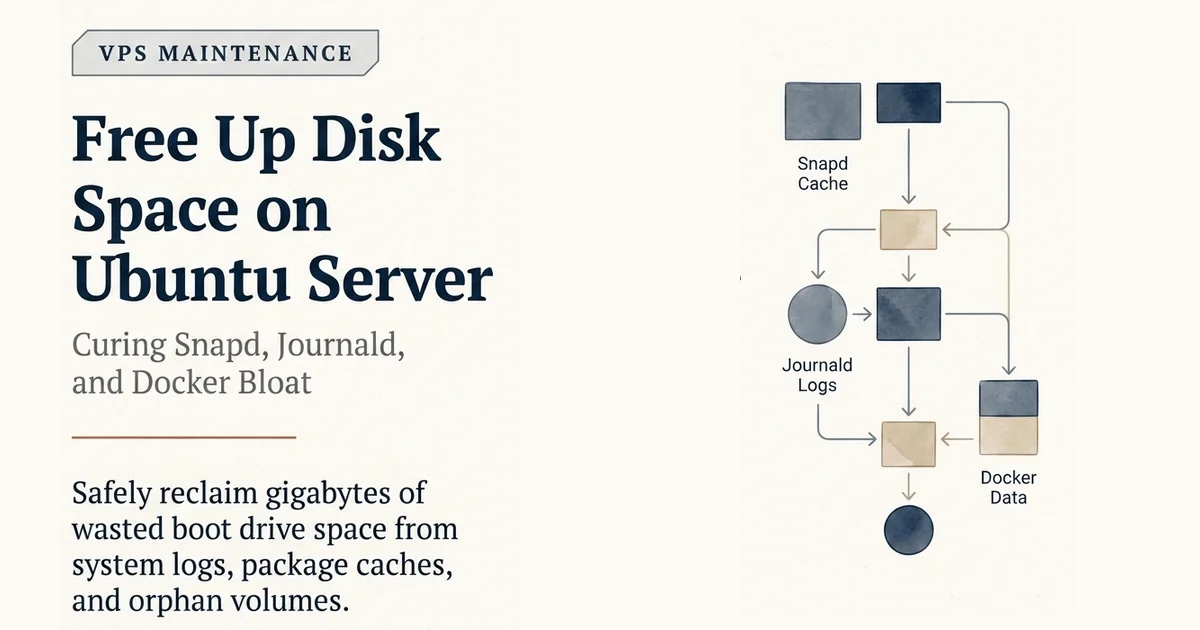
Ubuntu boot disk filling up? Reclaim 8-15GB from snapd, journald, and orphan Docker volumes without breaking running containers.
On this page
Introduction
A clean Ubuntu Server install uses about 4GB of disk. Within six months of running Docker, Coolify or Dokploy, and a handful of services, the same box can quietly balloon to 14GB, 18GB, or 20GB on the boot drive. The root partition still shows “45% free” in df, so nothing trips an alarm. Then you try to install a kernel update, run out of space in /boot, and realize you have been living on borrowed capacity.
I wish I had read this guide before trying to free up disk space on Ubuntu Server this week. Managing storage is a critical operational task, but standard systems accumulate snapd revisions, unbounded journald logs, and orphan Docker volumes that silently exhaust your boot drive.
- Broadly compatible: It works on any Ubuntu Server (Oracle Cloud, AWS, Hetzner, DigitalOcean, bare metal)
- Panel independent: It applies whether or not you are using Coolify or Dokploy
- Highest-leverage move: The single highest-leverage move is
journalctl --vacuum-sizeplus a permanent size cap
This post is the third in a series on running self-hosted services on a small Linux VPS. The first was the Cloud + Tailscale + PicoClaw setup. The second was the Docker bypasses UFW DOCKER-USER fix. This one is the missing chapter on how to free up disk space and maintain clean server storage.
Prerequisites
- An Ubuntu Server instance (Oracle Cloud, AWS EC2, Hetzner, or any Linux box running out of disk space)
- Sudo or root access
- Docker and snapd installed (the two main sources of metadata bloat)
Step 1 - Audit Your Current Disk Usage
Before you delete anything, see where the space actually went. Three near-identical ARM VPSes I maintain on Tailscale started as fresh Ubuntu minimal installs from the same cloud image.1 All three have snapd, Docker, and the same baseline packages. Their disk profiles diverged by more than 3x within a few months:
| Host | Stack | Boot / |
/mnt/docker-data |
Notes |
|---|---|---|---|---|
| host-01 | code-server, supabase-project, cloudflared | 14G / 45G (30%) | not mounted | Light Docker usage |
| host-02 | Coolify, Dashy, Shlink, Crawl4ai, cloudflared | 14G / 45G (31%) | 11G / 98G | Heavy Coolify |
| host-03 | Dokploy, Gitea, Docmost, Umami, Portainer, cloudflared | 20G / 45G (45%) | 9.4G / 99G | Dokploy + Gitea Actions |
The 45% mark on host-03 was the trigger. The other two were 6 percentage points away from joining it.
Run the same audit on your own box:
df -h
sudo du -sh /var/log/journal /var/lib/snapd /var/lib/docker 2>/dev/null
docker system df
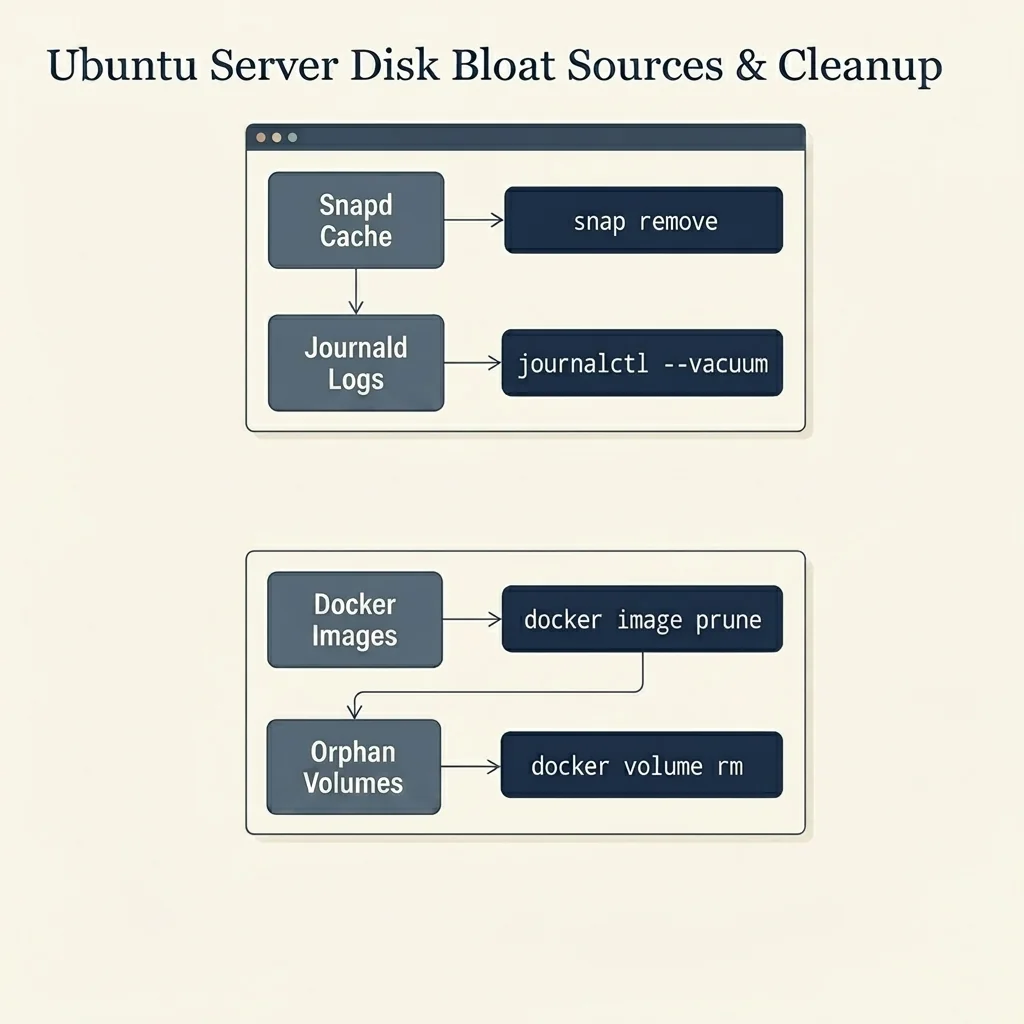
The Four Major Sources of Bloat
Running the same audit on all three hosts produced the same four offenders, in roughly the same order of severity.
1. snapd and the snap cache
/var/lib/snapd is the disk storage for snap packages. On host-01 and host-02 it sat at 332MB, holding only core18 and oracle-cloud-agent that the cloud image installs. On host-03 the same directory was 4.8GB because the same machine had accumulated core18, core22, core24, bare, cups, and snapd itself, plus historical revisions of each.
Per the Snapcraft managing snap revisions docs(opens in a new tab), snapd retains older versions of packages by default.2 The 14x size difference is not because the snaps were doing different work. host-03 was installed from an Ubuntu image that pulled in a wider snap baseline, and nothing ever cleaned the old revisions out.
2. Unbounded systemd journal
/var/log/journal was 3.9GB on every single host. systemd-journald has no size cap out of the box on Ubuntu. It happily writes 80MB rotated journal files every 90 minutes forever. On host-03, the 50 most recent rotated journals covered two weeks of operation. Multiply that by a year and you get the 4GB pile.
This one is the easiest to fix and the most often missed. The default Ubuntu install does not set SystemMaxUse in journald.conf, and journalctl --vacuum-size is a manual step most operators never run.3
3. Dangling and old Docker images
docker system df on every host showed 6-10GB of images, with Reclaimable: 100% on the ones with no tags. These are the leftover images from prior docker pull runs, prior upgrades, and panel “rolling update” behavior that pulls a new image and leaves the old one as <none>:<none>.
The 100% reclaimable number is misleading. Some of those untagged images are the actively running image that just had its
:latesttag reassigned.
Per the Docker system prune docs(opens in a new tab), Docker refuses to remove images currently in use by active containers4, but it cannot tell you in advance which untagged image is actually in use.
I verified by walking the chain. For every dangling image, I ran docker ps -a --filter "ancestor=$id" -q to see if any container still referenced it. On host-03, the 3GB <none> image was the running Dokploy. Removing it would have broken Dokploy. The reclaimable number is a lie in the presence of tag reassignment.
4. Orphan volumes from deleted projects
Dokploy and Coolify both create one Docker volume per service. When you delete a service in the UI, the volume is not always garbage-collected. On host-03, I found:
- 12
GITEA-ACTIONS-TASK-*ephemeral volumes from CI runs that never got cleaned up after the workflow ended (~595MB) - 5
host03-stirling-*volumes from a Stirling PDF project that had been deleted months earlier - 3
mono-auth-*volumes from a half-finished prototype - 4
host03-convex-*volumes from an aborted Convex deployment
The smoking gun is a find for the volume mounts. If LINKS=0 in docker system df -v, the volume is orphan. docker volume rm is safe in that state.
Step 2 - Execute the Cleanup Commands
These are the commands I ran, in the order I ran them, with the actual deltas. No clever tooling, no scripts. Just apt, snap, docker, and journalctl.
Step 2.1: Cap the journal forever, then vacuum the backlog
# Stop the bleeding first
sudo mkdir -p /etc/systemd/journald.conf.d
echo -e "[Journal]\nSystemMaxUse=500M" | sudo tee /etc/systemd/journald.conf.d/size.conf

# Then vacuum what is already on disk
sudo journalctl --vacuum-size=500M
Result on every host: 3.5GB freed, capped at 500MB going forward. This is the single highest-leverage command in the whole cleanup. See the journald.conf manual(opens in a new tab) for the full list of size directives.
Step 2.2: Remove snaps that should never have been installed
On host-03, the bloat was gnome-46-2404, gnome-42-2204, firefox, chromium, mesa-2404, gtk-common-themes, plus three core revisions. None of these are useful on a headless server with no display. The cloud image had pulled them in as transitive dependencies of a desktop-ish package set, and they had been growing for months.
for s in gnome-46-2404 gnome-42-2204 firefox chromium mesa-2404 gtk-common-themes; do
  sudo snap remove "$s"
done
Chromium took 60+ seconds to remove. snapd queues the operation and runs it in the background. Wait, check snap changes, and retry if it says “in progress”.
Result: /snap dropped from 11GB to 2.1GB, around 8.9GB freed.
Step 2.3: Audit dangling images before pruning
The dangerous move is docker image prune -a. The safe move is to check which untagged images are still referenced by a running container:
for id in $(docker images -f "dangling=true" -q); do
  used=$(docker ps -a --filter "ancestor=$id" -q)
  if [ -n "$used" ]; then
    echo "USED: $id by $used"
  else
    echo "TRULY ORPHAN: $id"
  fi
done
On host-03, all three dangling images were in use. docker image prune reclaimed 0 bytes. That is the correct answer. The misleading reclaimable number is a snapshot from when the tags were last reassigned, not real-time.
Step 2.4: Remove orphan volumes
# On host-03 specifically
for v in $(docker volume ls -q | grep -E "(convex|stirling|mono-auth|GITEA-ACTIONS-TASK|redis-data-volume)"); do
  docker volume rm "$v"
done
The redis-data-volume is the one that failed. It looked orphan by name pattern but was actually in use by the running dokploy-redis container. The error message told me that, and I moved on.
Result: 24 volumes removed, around 600MB of Docker metadata cleaned up.
Step 2.5: Purge apt debris and stale app data
sudo apt-get autoremove --purge -y
sudo truncate -s 0 /var/log/auth.log /var/log/syslog
sudo rm -f /home/ubuntu/gitea_backup.sql /home/ubuntu/docmost_backup.sql
The auth.log on host-02 was 1.5GB of normal session and sudo events. Truncating is safe, the file is open by rsyslog and it will just continue writing. The two SQL dumps in /home/ubuntu were 13-month-old one-off snapshots that nobody was using for restore.
Step 2.6: Remove the snapd framework (host-03 only)
This step is destructive. Only do it if you are sure you can live without the held cloud-agent snap, or if you are willing to leave core18 on disk to support it.
# On host-03, after all other snaps are gone
sudo snap remove cups  # stop the running snap-cups service first
for s in core22 core24 bare; do sudo snap remove "$s"; done
# core18 cannot be removed because oracle-cloud-agent depends on it
sudo apt-get purge -y snapd
sudo apt-get autoremove -y
Result on host-03: boot drive from 20GB used to 9.2GB used, 21% instead of 45%.
The collateral damage: snapd.service is gone, so the snap.oracle-cloud-agent.* systemd units are now inactive. The cloud metrics feed for that VPS into the provider console stops. The daemon can be brought back with apt install snapd && systemctl start snapd if you need it.
The Final State
| Host | Boot / before |
Boot / after |
Delta | Safe to clean? |
|---|---|---|---|---|
| host-03 | 20G / 45G (45%) | 9.2G / 45G (21%) | −10.8GB | yes, 100% safe |
| host-02 | 14G / 45G (31%) | 5.6G / 45G (13%) | −8.4GB | yes, log spam was the bulk |
| host-01 | 14G / 45G (30%) | not yet cleaned | n/a | would gain ~500MB |
The /mnt/docker-data partitions barely changed. Docker images and active volumes are real data, they belong on the second disk. The bloat was always on the boot partition, in places the user does not look: snapd, journald, stale app data.
What Goes Wrong When You Clean VPS Bloat
docker image prune -aremoves ALL unused images, including the one your running container is referencing through a SHA. Always check the ancestor chain first.snap remove snapddoes not work the way you think. You needapt purge snapdto remove the framework, but that breaks the held snaps that depend onsnapd.service.apt autoremoveis sometimes blocked byunattended-upgradesholding a lock. Run it twice if it exits 100.rm -rfon/var/log/journalwhile journald is running will confuse the daemon. Usejournalctl --vacuum-sizeinstead.
Tradeoffs
This cleanup has one real cost: observability went down. I truncated auth.log and syslog instead of archiving them. The 1.5GB of historical sudo events, sshd session opens, and unattended-upgrade runs are gone. If you ever need to do forensic root-cause analysis on a six-month-old login anomaly, you cannot.
The mitigation is journalctl, which I capped at 500MB. That gives me roughly 2-3 weeks of structured system logs going forward. It does not give me the auth.log format that some compliance workflows want.
For a personal VPS on Tailscale, this tradeoff is fine. For a production system with audit requirements, the right move is to send logs off-box first (Loki, CloudWatch, an S3 bucket) and only then truncate locally.
FAQ
Is it safe to run docker system prune -a on production hosts?
Only if you run an ancestor check first. If you have containers that were started without explicit tag bindings, or if a container was updated and its image tag reassigned, the active image can appear as <none>:<none> and be deleted, which will break the container on its next restart.
How do I permanently configure snapd to limit revisions?
You can instruct snapd to keep a maximum of two revisions (one active, one backup) instead of the default of five. Run:
sudo snap set system refresh.retain=2Will systemd-journald delete active logs during a vacuum?
No. systemd-journald only vacuums older, rotated journal files that have already been closed. It will never delete the active, open journal file currently receiving live system events.
Why is my Ubuntu server disk full after installing Docker?
Docker images, build cache, and orphan volumes accumulate in /var/lib/docker. snapd keeps old revisions under /var/lib/snapd. journald grows /var/log/journal until you cap it. df on / still looks healthy until /boot or a small root volume fills. Audit with du -xh --max-depth=1 on /var before you prune.
How much disk can I reclaim on Ubuntu Server?
On the three VPS hosts in this post, snapd + journald + Docker cleanup returned on the order of 8-15GB. Your number depends on how long snapd has been retaining revisions and whether anyone ever ran docker system prune.
Practical Cleanup Checklist
- Run
df -hand identify whether/var/logor/var/lib/snapdis the primary space consumer - Write the
SystemMaxUse=500Mconfiguration and runsudo journalctl --vacuum-size=500M - Set snapd retain revisions to 2 with
sudo snap set system refresh.retain=2 - Run the dangling image ancestor audit loop before executing any Docker prune
- Clean apt metadata caches and safely purge orphaned volumes
Conclusion
VPS bloat is not a flaw in any one tool. It is the natural decay of an Ubuntu + Docker + snapd + journald system when nobody is watching the boot partition. Knowing how to free up disk space is essential for long-term server maintenance, and the cleanup takes just 30 minutes per host.
The single highest-leverage move is journalctl --vacuum-size=500M plus a SystemMaxUse=500M cap. The single most dangerous move is docker image prune -a without checking the ancestor chain first. Run them in that order, on every Linux VPS you maintain, and you will not see a 45% boot drive again.
If you have not set up your VPS yet, start with the Cloud + Tailscale + PicoClaw guide and apply the DOCKER-USER fix before you publish your first container. Then run this cleanup six months in.
References
Footnotes
-
Oracle Cloud. “Oracle Cloud Always Free Tier overview.” https://www.oracle.com/cloud/free/(opens in a new tab) ↩
-
Snapcraft. “Managing snap revisions.” https://snapcraft.io/docs/managing-snap-revisions(opens in a new tab) ↩
-
systemd. “journald.conf(5) manual.” https://www.freedesktop.org/software/systemd/man/journald.conf.html(opens in a new tab) ↩
-
Docker. “docker image prune command documentation.” https://docs.docker.com/engine/reference/commandline/image_prune/(opens in a new tab) ↩